Microsoft Entra B2B Collaboration: What It Is and How to Configure It
In this article
External collaboration is something almost every organization deals with at some point. A partner needs access to a shared SharePoint site. A vendor needs to join a Teams channel. A contractor needs to review documents in OneDrive. Microsoft Entra B2B collaboration is the identity framework that handles all of this, and there's a lot more to configure than most people realize when they first dig into it.
This post covers what B2B is, how it works under the hood, and every major configuration option you need to know -- from the basics of inviting guests all the way to Conditional Access policies, MFA trust, and Microsoft 365 sharing settings.
What Is B2B Collaboration?
B2B collaboration is part of Microsoft Entra External ID, which is Microsoft's umbrella offering for identity scenarios that involve users outside your own organization. Specifically, B2B covers workforce tenant scenarios -- meaning your tenant, where your employees live, sharing resources with people from outside.
When a guest is invited, they use their own existing identity to sign in. That could be:
- Their work or school account from another Microsoft Entra tenant
- A Microsoft personal account
- A social identity like Google or Facebook (if you've enabled those)
- An email address authenticated via one-time passcode (OTP)
You don't create a password for them. You don't manage their credentials. You invite them, they accept using whatever identity they already have, and a guest user object gets created in your directory with a UserType of Guest. Their UPN in your tenant follows the format user_externalcompany.com#EXT#@yourtenant.onmicrosoft.com.
B2B vs B2B Direct Connect vs External ID for Customers
These three things get confused regularly:
B2B collaboration -- what this post is about. External users are invited to your tenant, a guest user object is created, and you manage their access through permissions, groups, and Conditional Access policies. Great for broad collaboration scenarios with partners, vendors, and contractors.
B2B direct connect -- a mutual, two-way trust between two specific Microsoft Entra tenants that enables limited collaboration without creating guest user objects. Currently this only works for Microsoft Teams Connect shared channels. Both organizations have to configure it. Users from the external org can participate in shared channels from within their own Teams instance, without switching tenants.
External ID for customer tenants -- a completely separate product for consumer-facing apps where you want customers to sign up and sign in with social or email identities. Different tenant type, different configuration model, out of scope for this post.
How the Invitation and Redemption Flow Works
When you invite a guest, a few things happen:
- An invitation email goes out (or you share the invitation link directly)
- The guest clicks the link and lands on a consent screen from your tenant
- They sign in with their chosen identity
- A guest user object is created (or updated) in your directory
- They get redirected to the app or resource they were invited to
Microsoft updated the redemption flow in 2025. Guest users are now redirected to their own organization's sign-in page first (if they have a Microsoft Entra account), which provides a more familiar experience. Email one-time passcode became the default fallback for all new tenants during the 2025 rollout -- so if a guest doesn't have a Microsoft Entra account, personal Microsoft account, Google, or Facebook identity configured, OTP is what they'll use.
You can customize the order in which identity providers are tried during redemption under Cross-tenant access settings > Default settings > Edit inbound defaults > B2B collaboration > Redemption order. You can also disable the Microsoft account (MSA) fallback if your organization doesn't want guests signing in with personal Microsoft accounts -- just note that if you do that, you must keep OTP enabled since you need at least one fallback.
External Collaboration Settings
This is the first configuration screen most admins touch. Find it at:
Microsoft Entra admin center > Identity > External Identities > External collaboration settings
Guest User Access Levels
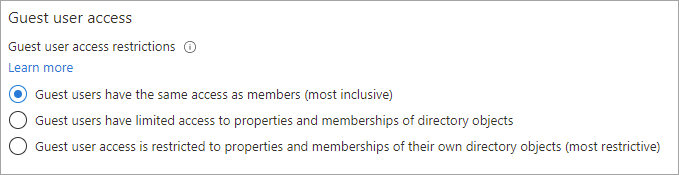
This controls how much of your directory a guest can browse. Three options:
- Same as member users -- most permissive. Guests can enumerate users, groups, and directory objects the same way your employees can.
- Limited access to properties and memberships of directory objects -- the default. Guests can see their own group memberships and look up users by email, but can't browse the full directory.
- Most restrictive -- guests can only see their own user object. They can't look up other users at all.
For most organizations the default (limited access) is the right call. Moving to member-level access is usually only appropriate in multi-tenant organization scenarios where guests are actually your own employees from another tenant.
Guest Invite Settings
Controls who in your organization can invite guests. Four options, from most to least permissive:
- Anyone in the organization, including guests and non-admins
- Members of the organization and specific admin roles can invite (this is the default for most tenants)
- Only users assigned the Guest Inviter role, plus specific admin roles
- No one can invite -- only admins can directly create guest accounts
If you want to lock down who can bring external users into your tenant, this is where you do it. Restricting to only the Guest Inviter role (or just admins) gives you a cleaner process where requests have to go through a defined workflow.
Self-Service Sign-Up via User Flows
Toggles whether external users can sign up for your apps through a self-service flow rather than requiring an invitation. Off by default. If you turn this on, you'll need to configure user flows separately.
External User Leave Settings
Whether guests can remove themselves from your organization. On by default. Turning this off means guests can't self-service their way out -- an admin has to remove them. If you have strict data governance requirements around offboarding, you might consider disabling this and handling removal through a formal process.
Collaboration Restrictions (Allow/Block Lists)
You can restrict which domains are allowed to be invited as guests. Two modes:
- Allow invitations only to specified domains -- an allowlist. Only users from listed domains can be invited.
- Block invitations to specified domains -- a blocklist. Users from listed domains can't be invited, everyone else can.
This is checked at invitation time. If you're also using cross-tenant access settings, both are evaluated -- a domain has to pass both checks to succeed.
Cross-Tenant Access Settings
This is the deeper configuration layer that controls collaboration with specific Microsoft Entra organizations. Find it at:
Microsoft Entra admin center > Identity > External Identities > Cross-tenant access settings
There are two tabs: Default settings (applies to all external orgs you haven't specifically configured) and Organizational settings (per-org overrides).
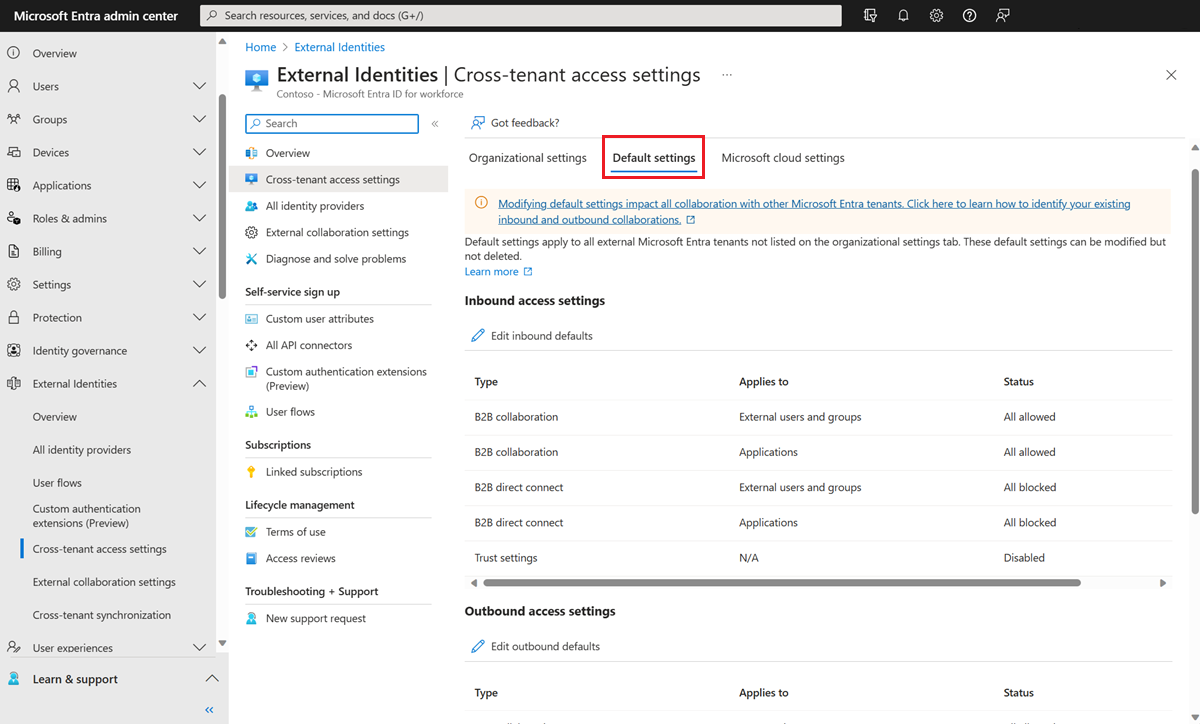
Inbound Access Settings
Controls what external users from other Microsoft Entra orgs can access in your tenant.
External users and groups -- you can allow or block all external users, or with a P1/P2 license, scope to specific users or groups from the partner org (you'll need their user/group object IDs).
Applications -- you can allow or block all your applications, or scope to specific ones. Important note: if you're building an application allowlist, don't forget to include Microsoft system apps that guests need to function. If you only allow SharePoint Online and nothing else, guests may fail when doing things like MFA registration or accessing My Apps. The apps worth adding explicitly are My Apps (2793995e-0a7d-40d7-bd35-6968ba142197), My Profile (8c59ead7-d703-4a27-9e55-c96a0054c8d2), and My Sign-ins (19db86c3-b2b9-44cc-b339-36da233a3be2). Some of these can only be added via Microsoft Graph API -- not through the admin center UI.
Outbound Access Settings
Controls which of your users can collaborate with external orgs and what external apps they can access.
Users and groups -- scopes which of your users can be invited to external tenants. You can restrict this to specific groups if you want to limit which employees can participate in external B2B collaboration.
External applications -- controls which external apps your users can be invited to access. If your security policy prohibits users from accessing certain types of external apps via B2B, configure this here.
Trust Settings (Inbound)
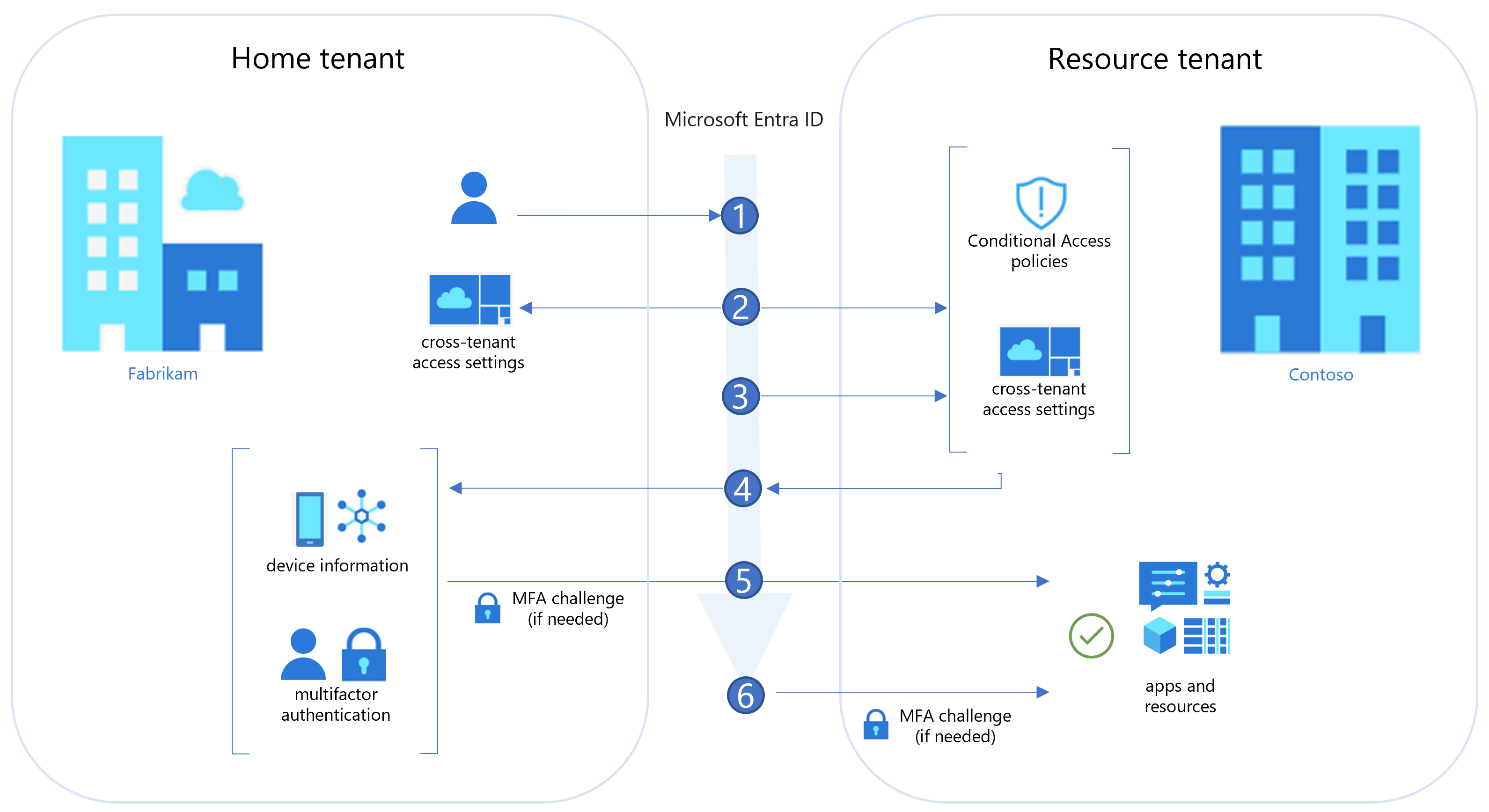
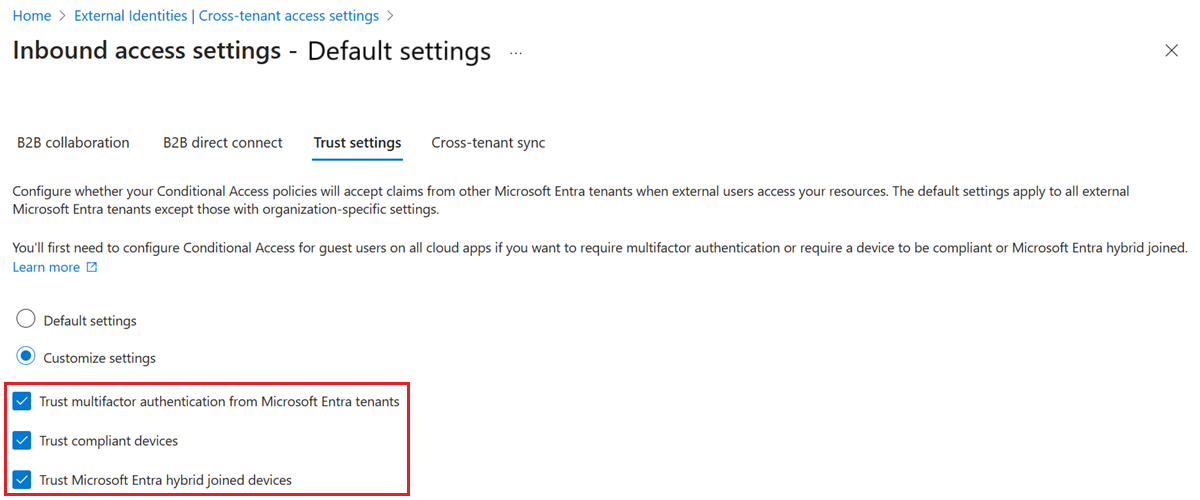
This is where things get interesting from a Conditional Access perspective. Trust settings let your Conditional Access policies accept claims from external Microsoft Entra organizations instead of challenging the guest again in your tenant. Three options:
Trust multifactor authentication from Microsoft Entra tenants -- if enabled and a guest already completed MFA in their home tenant, your Conditional Access policies treat that as satisfied. Without this, guests get an MFA challenge from your tenant every time they access a resource (assuming you have an MFA Conditional Access policy). For B2B direct connect users, this trust is mandatory -- if you don't enable it, B2B direct connect users are blocked entirely.
Trust compliant devices -- if enabled, device compliance claims from the guest's home tenant are accepted. This is the only practical way to enforce "require compliant device" on guests, since external users can't enroll devices in your tenant.
Trust Microsoft Entra hybrid joined devices -- same idea for hybrid join claims.
Automatic Redemption
Per-org setting. When enabled for a specific partner, users from that org don't have to manually accept the consent prompt when accessing your resources. Useful for close partners or multi-tenant orgs where you don't want users to see the "review permissions" prompt every time. Both organizations have to enable this setting for the other -- it's mutual.
Conditional Access for Guest Users
Conditional Access policies apply to guests in your tenant the same way they apply to your employees, but with some important differences in what's supported and how evaluation works.
Targeting External User Types
When building a Conditional Access policy, you can scope it to specific types of external users rather than treating all guests the same. The user type options are:
- B2B collaboration guest users -- the most common guest type. Has a guest-level UserType.
- B2B collaboration member users -- external users from another Entra tenant who have member-level permissions (common in multi-tenant orgs).
- B2B direct connect users -- users accessing via Teams shared channels without a guest object in your directory.
- Local guest users -- legacy accounts where someone manually set UserType to Guest on an internally-managed account.
- Service provider users -- accounts from CSPs or managed service providers with GDAP relationships.
- Other external users -- catchall for anything that doesn't fit the above.
The old "All guest and external users" selector has been replaced with "Guest and external users" plus individual subtypes, giving you proper granularity to enforce different policies for different collaboration scenarios.
What's Supported for Guests
Most Conditional Access controls work. Some don't:
Supported:
- Block access
- Require MFA
- Require compliant device (needs trust settings configured)
- Require Microsoft Entra hybrid joined device (needs trust settings configured)
- Terms of Use (B2B collaboration only)
- Session controls: app-enforced restrictions, Conditional Access App Control, sign-in frequency, persistent browser session
- Authentication strength policies (for Microsoft Entra external users)
- Location-based policies (IP ranges, named locations)
- Risk-based policies (sign-in risk)
- Client app conditions (block legacy auth)
Not supported:
- Require approved client app
- Require app protection policy
- Require password change
- Terms of Use for B2B direct connect users
- User risk remediation (guests can't reset passwords in your tenant)
MFA and Authentication Strength
For non-Microsoft Entra guests (Google federation, OTP, SAML federation), the resource tenant is always responsible for MFA. The guest completes MFA in your tenant.
For Microsoft Entra guests, you have a choice. If you've enabled MFA trust in cross-tenant access settings, guests who've already done MFA at home pass through. If you haven't enabled trust, they complete MFA in your tenant and have to register there.
Authentication strength policies let you require specific MFA methods for external users. Built-in strengths include:
- Multifactor authentication strength (any MFA method)
- Passwordless MFA strength
- Phishing-resistant MFA strength
You can also define custom authentication strength policies for fine-grained control. This is especially useful if you want to require phishing-resistant MFA (like FIDO2 or Windows Hello) for external users accessing sensitive apps, while still accepting any MFA from internal employees.
Note that the methods available to guests differ depending on where MFA is completed. When completing MFA in your resource tenant, guests have access to SMS, voice, Microsoft Authenticator push, and OATH software tokens. They can't use FIDO2, Windows Hello, certificate-based auth, or hardware tokens in your tenant -- those are only available in their home tenant.
Sign-In Risk and User Risk Considerations
Sign-in risk policies work for guests -- if a guest's sign-in looks risky (impossible travel, anomalous IP, etc.), you can require MFA or block access.
User risk policies are problematic. If a guest is flagged as high risk and your policy requires a password change, they'll be blocked because they can't change their password in your directory. The recommended pattern is to exclude external users from user risk policies, or build a separate policy that just blocks high-risk guests rather than prompting a password change.
Microsoft 365 Sharing Controls for Guests
B2B guest access in Microsoft 365 is governed by settings spread across multiple admin centers. These settings sit on top of the Entra B2B configuration -- if Entra blocks the guest, nothing at the M365 layer matters. But the M365 settings can further restrict what guests can do even if Entra allows them.
Microsoft 365 Admin Center
Settings > Org settings > Security and privacy > Sharing: The "Let users add new guests to the organization" toggle. When on, M365 group members can invite guests (with owner approval). This maps to the Guest Inviter setting in Entra External Collaboration Settings.
Settings > Org settings > Microsoft 365 Groups:
- Let group members outside your organization access group content (default: on)
- Let group owners add people outside the organization to groups (default: on)
Both of these need to be on for guest collaboration in Teams and Groups to work smoothly.
Teams Admin Center
Users > Guest access: Master switch for guest access in Teams. Default is on. If this is off, no guest access anywhere in Teams regardless of what other settings say.
Beyond the master switch, Teams gives you per-feature controls for guests:
Calling: Make private calls (on/off)
Meeting settings: Video conferencing, screen sharing (full screen, single app, or disabled), Meet Now in channels
Messaging settings: Edit sent messages, delete sent messages, delete chat, use chat, use Giphy (with content rating controls: strict/moderate/all content), use memes, use stickers, immersive reader
These are all on by default. If your organization's guest policy says external users should have limited capabilities in Teams, review these and tighten as needed.
SharePoint and OneDrive
SharePoint admin center > Policies > Sharing: Organization-level sharing setting. Options from most to least permissive:
- Anyone (anyone with the link, no sign-in required)
- New and existing guests (guests must sign in or verify)
- Existing guests only (only guests already in your directory)
- Only people in your organization
OneDrive's setting can't be more permissive than SharePoint's.
Additional SharePoint advanced sharing controls worth knowing:
- Limit external sharing by domain (mirrors the Entra allowlist/blocklist but at the SharePoint level)
- Allow only users in specific security groups to share externally
- Allow guests to share items they don't own
- Guest access expiration (set a number of days after which site access expires -- site owners can renew)
- One-time passcode reauthentication frequency
At the individual site level, site admins can further restrict sharing permissions down from the org-level maximum, and can set site-specific domain restrictions, expiration, and link defaults.
Microsoft 365 Copilot and Guest Users
Copilot respects the exact same permissions that govern everything else in Microsoft 365. Guests who have a Copilot license can use Copilot, but Copilot only shows data that the guest user has permission to access. If a guest is a member of a SharePoint site, Copilot can help them work with documents on that site. It cannot reach data in sites they don't have access to.
This matters for cross-tenant scenarios with shared channels in Teams. If you've configured B2B direct connect and a guest is participating in a shared channel, their access to resources shared in that channel is determined by the shared channel's policies -- and Copilot honors those boundaries.
Prompts and responses generated through Copilot stay within the Microsoft 365 service boundary. They're not used to train foundation models. If you're working with external users who have Copilot access, the key thing to verify is that your permissions model is tight -- Copilot amplifies access but doesn't create it.
Identity Provider Integrations
Beyond Microsoft Entra-to-Entra B2B, you can enable additional identity providers so guests with non-work identities can sign in:
Google federation -- enables guests with Gmail or Google Workspace accounts to sign in using their Google credentials. Configure at External Identities > All identity providers > Google.
Facebook -- for personal Facebook accounts. Less common in enterprise scenarios but available.
Email one-time passcode -- on by default. The fallback for anyone who doesn't have any of the above. A 6-digit code is emailed to them each time they sign in. No account required on the guest side.
SAML/WS-Fed federation (direct federation) -- for external identity providers that support SAML 2.0 or WS-Federation. Used when you have a specific partner with their own IdP that isn't Microsoft Entra. After setup, their users sign in through their own IdP and arrive in your tenant as guests. You can add the federated domain to the redemption order in cross-tenant access settings and move it ahead of Microsoft Entra as the primary identity provider.
Entitlement Management and Access Packages
If you're managing access for external users at scale, Entitlement Management (part of Microsoft Entra ID Governance) is worth knowing. You can create access packages that bundle together SharePoint site access, Teams memberships, group memberships, and app assignments, then make those packages requestable by external users.
External users can request an access package via a link you provide them. They don't need an existing guest account -- the access package can trigger the invitation process automatically. Time-limited access, approval workflows, and automatic expiration are all available. When their access expires, the guest account can be automatically removed if no other access packages are active.
This is the right pattern when you're working with many partners or projects where guests need defined, scoped access that expires rather than indefinite group memberships that accumulate over time.
Monitoring and Auditing
Sign-in logs -- available in both the home tenant and your resource tenant. In your tenant, you'll see guest sign-ins with a cross-tenant access type of B2B collaboration (or B2B direct connect). Use these to understand who is accessing what, and when.
Audit logs -- show when cross-tenant access settings are changed, when guest invitations go out and are accepted, and when access packages are assigned.
Access reviews -- schedule recurring reviews of guest access. Reviewers (typically resource owners) see the list of active guests and can confirm or remove access. For Teams, access reviews can detect both B2B collaboration guests and B2B direct connect users in shared channels. This is how you prevent guest access from accumulating forever.
For querying sign-in activity in Log Analytics, the SigninLogs table has a UserType field you can filter on:
SigninLogs
| where UserType == "Guest"
| where TimeGenerated > ago(30d)
| summarize SignInCount = count() by UserDisplayName, AppDisplayName
| order by SignInCount desc
Combine this with CrossTenantAccessType for more specific filtering on B2B collaboration vs direct connect sign-ins.
Pulling It Together: A Recommended Configuration Pattern
For most organizations starting from a reasonably open default and wanting to add appropriate controls:
-
External collaboration settings: Set guest invite permissions to "Members and specific admin roles" if you don't want all employees inviting guests freely. Leave the guest access level at the default (limited).
-
Cross-tenant access settings: Leave defaults as "all allowed" for inbound B2B collaboration. Add specific partner orgs to Organizational settings if you want per-org controls. Enable MFA trust under trust settings if you have an MFA requirement and want guests to satisfy it in their home tenant.
-
Conditional Access: Create a policy scoped to "Guest and external users > B2B collaboration guest users" requiring MFA. Pair this with the MFA trust setting so guests from trusted Entra tenants can satisfy it at home. Add authentication strength if you need phishing-resistant methods for high-sensitivity apps.
-
Teams: Keep guest access on at the org level. Review the messaging and meeting controls and restrict based on your org's guest policy.
-
SharePoint: Set org-level sharing to "New and existing guests" unless your use case requires anonymous links. Configure guest access expiration so long-running projects don't create permanent access through inactivity.
-
Entitlement Management: If you're regularly onboarding partners or external contractors, set up access packages. It's more upfront work but pays off in lifecycle management.
-
Access reviews: Schedule quarterly reviews for active guest users, scoped to at minimum your Teams and SharePoint resources. Assign reviewers to resource owners, not just IT.