Azure Cost Commitments: Reservations, Hybrid Benefit, and Savings Plans
In this article
Azure's pay-as-you-go pricing is convenient, but it's the most expensive way to run a workload you already know you'll keep running. Before reaching for architectural changes or right-sizing exercises, there are three commitment-based tools that can reduce your bill with no changes to how your resources are deployed. They answer different questions, operate at different billing layers, and can be combined on the same workload.
| Tool | Core Question | Commitment | Flexibility |
|---|---|---|---|
| Azure Hybrid Benefit | Do you own existing Microsoft licenses? | None | Toggle on/off anytime |
| Reservations | Do you know exactly what you'll run for 1–3 years? | Specific SKU + Region | Low |
| Savings Plans | Do you know how much you'll spend per hour for 1–3 years? | $/hr spend amount | High |
These are billing constructs only. None of them change how your resources run, where they run, or how they're managed. Only your bill changes.
Azure Hybrid Benefit
What It Is
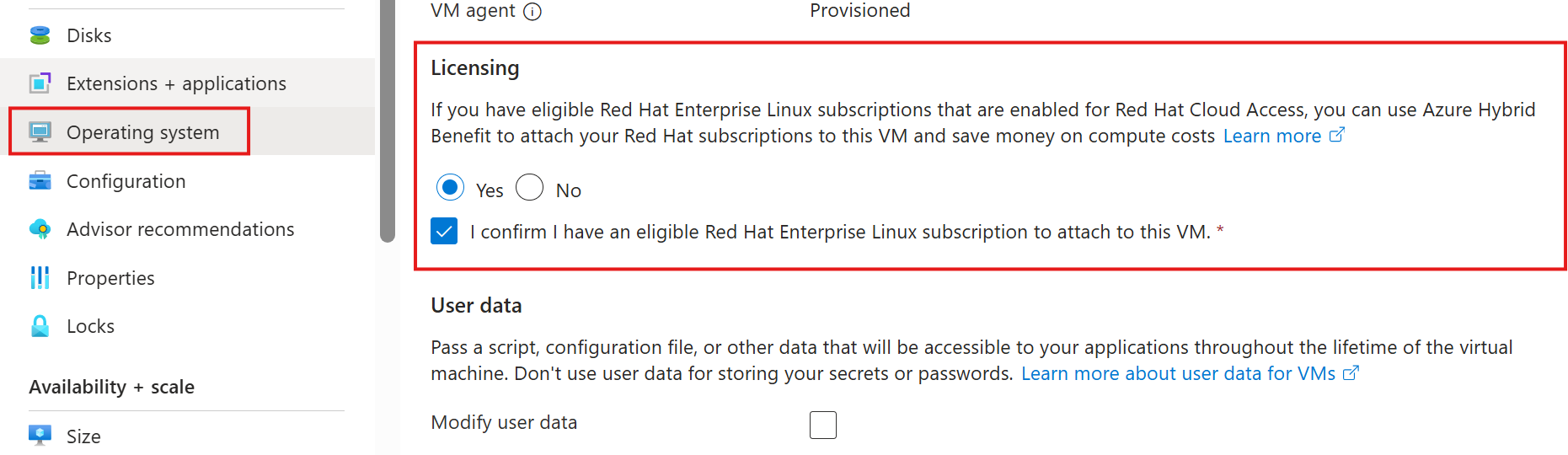
Azure Hybrid Benefit (AHB) lets you bring existing on-premises Microsoft licenses into Azure, eliminating the bundled license cost that Azure would otherwise charge. It applies to:
- Windows Server VMs — removes the Windows OS license cost; you pay only the Linux base compute rate
- SQL Server (VMs and PaaS) — removes or reduces the SQL license cost
- Azure Local — waives the host fee and Windows Server subscription fee
- AKS — run Windows-based node pools without paying Windows license costs
How It Works
When you deploy a Windows Server VM without AHB, the hourly rate bundles two components: compute and Windows license. AHB strips out the license, reducing that VM to the equivalent Linux rate.
Example — Standard_D4s_v5, East US:
| Configuration | Approx. Hourly Rate |
|---|---|
| Windows VM (PAYG, no AHB) | ~$0.304/hr |
| Same VM with AHB applied | ~$0.192/hr |
| Linux VM (baseline) | ~$0.192/hr |
That's roughly a 37% reduction on that VM's cost — by flipping a switch.
Licensing Requirements
You need qualifying on-premises licenses with active Software Assurance (SA) or a qualifying subscription:
- Windows Server Standard or Datacenter — minimum 8 core licenses per VM; allocate licenses equal to the VM's core count
- Windows Server Datacenter — grants unlimited virtualization rights on an Azure Dedicated Host
- Standard edition — licenses can only be used on-premises or in Azure (not both), with a 180-day migration window exception
- Datacenter edition — allows simultaneous on-premises and Azure use indefinitely
Important: AHB rights expire when your Software Assurance or subscription expires. If SA lapses without renewal, you must disable AHB on those VMs or you're out of compliance. Microsoft can audit at any time.
What to Watch Out For
- Compliance tracking is your responsibility. Azure doesn't enforce license limits — it's an honor system. Applying AHB to more VMs than you have licenses for means you're non-compliant.
- SQL on PaaS is configured separately. For Azure SQL Database or SQL Managed Instance, AHB is enabled during provisioning or afterward in the resource's configuration — it's not inherited from VM-level AHB settings.
- Billing lag. After enabling AHB on a VM, expect several hours before the cost change appears in billing data.
Reservations
What They Are
A reservation is a 1- or 3-year commitment to a specific resource configuration in exchange for a discount of up to 72% off PAYG rates. You're not pre-provisioning capacity or locking a VM to a host. You're committing to a billing rate for a specific SKU in a specific region.
After purchase, Azure automatically applies the reservation discount to any running resource that matches the reservation's attributes. No configuration changes are needed on the resources themselves.
What Can Be Reserved
Reservations cover a broad range of services, including:
- Virtual Machines
- Azure SQL Database / SQL Managed Instance
- Azure Cosmos DB
- Azure Blob / Files / Disk storage
- Azure Databricks (DBU-based)
- Azure App Service stamp fees
- Azure Cache for Redis / Managed Redis
- Azure Synapse Analytics
- Azure Dedicated Host
The full list continues to expand — check the Azure portal Reservations blade for the current supported services.
What Reservations Do NOT Cover
This is a common source of confusion. A VM reservation covers compute only. It does not cover:
- Windows or SQL Server license costs → covered separately by AHB
- Storage (OS disk, data disks)
- Networking (egress, public IPs)
- Any software running on the VM
The same pattern applies to SQL reservations — compute is covered, not storage or networking.
Scoping
When you purchase a reservation, you choose a scope that determines where the discount applies:
| Scope | What it covers |
|---|---|
| Single subscription | Applies only to resources in one subscription |
| Shared | Applies across all subscriptions in the same billing account (EA enrollment or MCA billing profile) |
| Management group | Applies across subscriptions within a management group |
Shared scope is almost always preferable in enterprise environments — it maximizes utilization even if workloads move between subscriptions. Scope can be changed after purchase at no cost.
Instance Size Flexibility (ISF)
By default, most VM reservations have Instance Size Flexibility enabled. This allows the discount to apply across different VM sizes within the same family and region, using a ratio based on compute units.
Example: A reservation for one Standard_E8s_v5 (8 vCPUs) can instead cover two Standard_E4s_v5 VMs (4 vCPUs each).
ISF does not apply to all reservation types. SQL Database, SQL Managed Instance, and Dedicated Hosts use rigid SKU matching. Always verify before purchasing.
The Real Risk: Under-Utilization
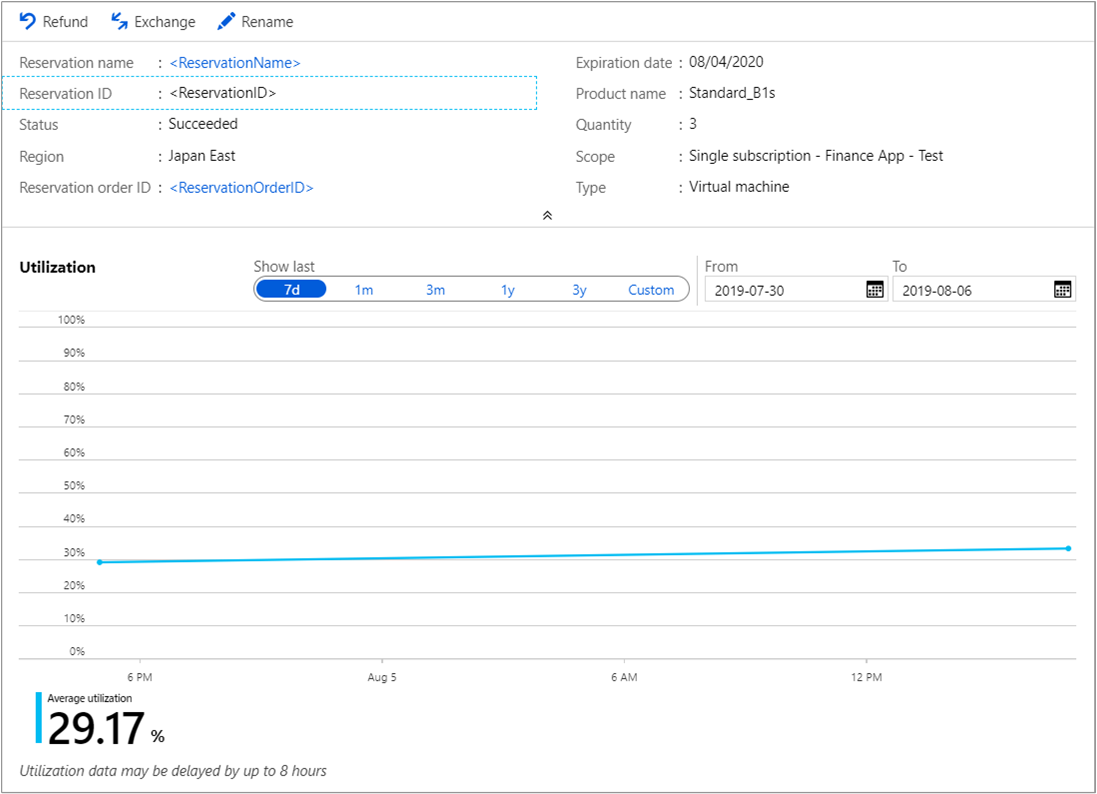
If you run more instances than your reservation covers, the overage bills at PAYG rates — no penalty. The more significant problem is the other direction: unused reservation hours don't roll over and don't credit back.
Example: You purchase a 1-year reservation for 10x Standard_E8s_v5. Midway through the year, your workload scales down to 6 VMs. You're paying for 10 VMs worth of reservation benefit but only consuming 6. Those 4 unused hours per hour are wasted spend.
This is why utilization monitoring is essential. In Azure Cost Management → Reservations → Utilization, there's a report showing what percentage of each reservation is being consumed. A healthy reservation should be at or near 100%. Persistent utilization below ~70% is a signal to consider exchanging or partially refunding.
Exchange and Refund Policy
- Exchanges: You can exchange a reservation for another of the same type (VM for VM, SQL for SQL). Useful when your SKU requirements change.
- Refunds: Self-service refunds up to a rolling $50,000 USD limit per 12 months across your agreement. You receive the remaining prorated value minus any early termination fee.
- Savings Plans cannot be refunded — see below.
Savings Plans
What They Are
A savings plan is a 1- or 3-year commitment to spend a fixed dollar amount per hour on eligible services. In return, you get discounted rates on that usage — automatically applied across any eligible resource, in any region, without specifying a SKU.
There are two types:
- Savings Plan for Compute — covers VMs, App Service, Azure Functions Premium, Container Instances, Dedicated Hosts, Container Apps, and Azure Spring Apps Enterprise
- Savings Plan for Databases — covers Azure SQL Database, SQL Managed Instance, Azure SQL Hyperscale, Azure SQL Serverless, PostgreSQL, MySQL, Cosmos DB, and SQL Server hourly licenses on VMs/Arc
How the Commitment Works
Each hour, Azure applies savings plan discounts to your eligible usage — starting with the usage that receives the highest discount rate — until your hourly commitment is consumed. Remaining usage bills at PAYG. Unused commitment in an hour expires and does not roll over.
Example: You commit to $10/hr. In a given hour you run workloads that would normally cost $14 PAYG. The first $10 (discount-prioritized) gets savings plan rates. The remaining $4 bills at PAYG.
Savings Plans vs. Reservations
| Savings Plans | Reservations | |
|---|---|---|
| Commitment unit | $/hr spend | Specific SKU + Region |
| Applies across regions | Yes | No (per region) |
| Applies across VM sizes | Yes | Only within family (ISF) |
| Discount depth | ~65% off PAYG | Up to 72% off PAYG |
| Best for | Dynamic/variable workloads | Stable, predictable workloads |
| Refundable | No | Yes (within limits) |
| Can stack on same resource | No (reservations take priority) | Yes (AHB stacks on top) |
The trade-off is simple: more flexibility = slightly less discount. Savings Plans give up a few percentage points compared to reservations in exchange for not being locked to a specific SKU or region.
What to Watch Out For
- No refund. Savings plan purchases cannot be cancelled or refunded after purchase. Get the sizing right before buying — use Azure Advisor recommendations and the purchase flow's built-in projections.
- Reservations take priority. If a resource matches both a reservation and a savings plan, the reservation discount applies first. The savings plan commitment is not consumed by that resource until the reservation benefit is exhausted.
- Don't over-commit. Size your savings plan to your steady-state baseline, not your peak. Let PAYG absorb the variable tail.
How They Stack
These tools are not mutually exclusive. On a Windows SQL Server VM, all three can apply simultaneously:
Full PAYG price (Windows VM with SQL)
  └─ AHB applied              → removes Windows OS license cost
      └─ AHB for SQL applied  → removes SQL Server license cost
          └─ Reservation      → discounts remaining compute cost by up to 72%
The compute reservation doesn't care whether AHB is enabled — it discounts whatever compute cost remains after AHB strips the licenses. They operate at different billing layers and are fully composable.
Savings Plans and Reservations cannot stack on the same resource. If a VM is covered by a reservation, it won't consume your savings plan commitment for that same usage. In practice, a well-constructed strategy uses reservations for known stable workloads and a savings plan as a catch-all for dynamic compute.
Practical Decision Framework
Walk through this sequence when advising on which tools to use:
1. Do you have existing Windows Server or SQL licenses with active Software Assurance? → Enable AHB immediately. Zero cost, immediate savings, no commitment required.
2. Do you have workloads running the same SKU in the same region 24/7 or near-24/7? → Buy a reservation. Use Azure Advisor or the Reservations blade for recommendations. Start with a 1-year term if you're uncertain about workload stability.
3. Do you have significant compute spend that's dynamic, multi-region, or changing SKU over time? → Consider a Savings Plan for the portion of spend that's consistently present but not predictable in shape.
4. Is the workload somewhere in between? → Consider a reservation for the known stable floor + savings plan for the dynamic portion above it.
Common Mistakes to Avoid
Buying a reservation without checking actual utilization first Purchase based on actual usage data, not provisioned VM size. A VM provisioned at D8s_v5 but running at D4s_v5 levels of consumption should be a D4s_v5 reservation target — or should be right-sized first.
Scoping reservations to a single subscription unnecessarily Always evaluate shared scope in enterprise environments. A reservation stuck to one subscription can go underutilized while identical workloads run in other subscriptions without getting the discount.
Ignoring the $50K refund cap In large environments, this limit is reachable. It's a rolling 12-month window, not a one-time cap, but it's finite. Treat reservations as a considered decision, not an easily reversible one.
Assuming savings plans are a safe default because they're flexible They're flexible, but they're not refundable. An over-committed savings plan wastes just as much as an over-committed reservation — the only difference is you can't exit it. Size conservatively.
Applying AHB without a license compliance process AHB is not a toggle to flip and forget. If your Software Assurance expires, you're out of compliance. Build a process to track SA renewal dates alongside AHB-enabled resource counts.
Where to Monitor in Azure
| Task | Location |
|---|---|
| View reservation utilization | Cost Management → Reservations → Utilization |
| View savings plan utilization | Cost Management → Savings Plans |
| Get purchase recommendations | Azure Advisor → Cost tab |
| Identify AHB-enabled VMs | Azure Portal → Virtual Machines → filter by "License type" |
| Analyze what AHB is saving | Cost Management → Cost Analysis → filter by meter category |
| Exchange or refund a reservation | Cost Management → Reservations → select → Exchange / Refund |
