Git for Teams: A Practical Breakdown Before You Add GitHub Copilot
In this article
Git for Teams: A Practical Breakdown Before You Add GitHub Copilot
Almost every modern development workflow runs on Git, and almost everyone learns just enough of it to get by, then gets stuck the first time something goes sideways. This post will help you with the foundation: what Git actually is, the commands that matter, why each one exists, and how they fit together when more than one person is touching the same code. At the end I'll bring in GitHub Copilot. Copilot is more useful when you already understand what it's doing on your behalf.
This is meant to be a practical introduction I can build on in later posts. If you're brand new, start here. If you've been copy-pasting Git commands from Stack Overflow and hoping, this should fill in the why.
What Is Git (and What Is GitHub)?
People will often use these interchangeably.
- Git is a distributed version control system. It runs locally on your machine, tracks every change to your files over time, and lets you branch, merge, and roll back. It needs no network and no account. It was created by Linus Torvalds in 2005 to manage Linux kernel development.
- GitHub is a hosting platform for Git repositories. It adds collaboration on top of Git: a place to store the shared copy, pull requests, code review, issues, CI/CD via Actions, and access control. GitLab and Azure DevOps are alternatives that do the same job.
Put simply: Git is the tool, GitHub is the place teams put their Git repositories so they can work together. You can use Git with no GitHub at all. You cannot use GitHub without Git.
How Git Thinks: The Three Areas
Every Git command makes more sense once you picture the three places your work lives locally, plus the remote:
  Working Directory        Staging Area          Local Repository        Remote (GitHub)
  (your actual files)      (the index)           (committed history)     (shared copy)
        │                       │                       │                      │
        │   git add             │   git commit          │   git push           │
        ├──────────────────────►├──────────────────────►├─────────────────────►│
        │                       │                       │                      │
        │◄──────────────────────────────────────────────┴──────────────────────┤
        │              git pull / git fetch + merge                             │
- Working directory — the files you actually edit.
- Staging area (index) — a holding zone where you assemble exactly what goes into the next commit. This is the part most people skip past, but it's what lets you commit some of your changes and not others.
- Local repository — the committed history on your machine. This is the
.gitfolder. - Remote — the shared copy on GitHub that the whole team pushes to and pulls from.
The reason Git is "distributed" is that every developer has the full history locally. The remote isn't special; it's just the copy everyone agrees to treat as the source of truth.
The Core Commands and Why They Exist
Here's the working set. Not every flag, just the commands you'll use daily and the reason each one matters.
| Command | What it does | Why you use it |
|---|---|---|
git clone <url> |
Copies a remote repo to your machine | Your starting point for any existing project |
git status |
Shows what's changed, staged, and untracked | Your "where am I" command, run it constantly |
git add <file> |
Stages changes for the next commit | Lets you choose precisely what goes in a commit |
git commit -m "msg" |
Records staged changes to local history | Creates a save point with a description of why |
git push |
Sends local commits to the remote | Shares your work with the team |
git pull |
Fetches remote changes and merges them in | Keeps you up to date with everyone else |
git fetch |
Downloads remote changes without merging | Lets you inspect before integrating |
git branch |
Lists, creates, or deletes branches | Manages parallel lines of work |
git checkout <branch> / git switch |
Moves you to another branch | Switch contexts between features |
git merge <branch> |
Combines another branch into yours | Brings a finished feature back into main |
git log |
Shows commit history | Understand what happened and when |
git diff |
Shows line-by-line changes | Review before you stage or commit |
git stash |
Shelves uncommitted changes temporarily | Park work to handle something urgent |
Configure Git once, first
Before your first commit, tell Git who you are. This will track every commit with your identity:
git config --global user.name "Your Name"
git config --global user.email "you@example.com"
The daily process
Ninety percent of your Git usage is this cycle:
git status                      # what's changed?
git add .                       # stage everything (or name specific files)
git commit -m "Add login form"  # record it with a clear message
git push                        # share it
git add and git commit being separate steps is intentional. The staging area lets you craft a clean commit, you might have edited five files but only want three in this commit. git add file1.js file2.js stages just those, and the rest stay pending for the next one.
Branching: Where Teams Actually Live
Branching is the single most important Git concept for teamwork, and it's where the commands above start to pay off.
A branch is an independent line of development. The default branch is usually called main. When you start a new feature, you create a branch off main, do your work there in isolation, and merge it back when it's done and reviewed. Your half-finished work never destabilizes what everyone else is building on.
main      ───●───●───────────────●─────► (stable, always deployable)
              \                  /
feature        ●───●───●───●────●        (your work, isolated until merged)
The commands for the full branch lifecycle:
git switch -c feature/user-auth   # create and switch to a new branch
# ... make changes, add, commit ...
git push -u origin feature/user-auth   # push the branch to GitHub the first time
# ... open a pull request on GitHub, get it reviewed ...
git switch main                   # back to main
git pull                          # get the merged result
git branch -d feature/user-auth   # delete the local branch, it's done
git switch -c (or the older git checkout -b) is create-and-switch in one step. The -u on the first push sets the "upstream" so future git push and git pull on that branch know where to go.
A Real Team Workflow, Command by Command
Let me make this concrete. Picture a team of three: Ana, Ben, and Chris, working on a web app. Here's how the commands map to what actually happens in a week.
Scenario 1: Starting fresh on a feature
Ana picks up a ticket to add a search box. She does not start working on main, she branches:
git switch main
git pull                          # start from the latest shared code
git switch -c feature/search-box  # isolate her work
She works, committing in small logical chunks as she goes (not one giant commit at the end):
git add src/search.js
git commit -m "Add search input component"
git add src/api/search.js
git commit -m "Connect search to the query endpoint"
git push -u origin feature/search-box
Small, frequent commits give her save points to roll back to and make code review far easier than one 800-line dump.
Scenario 2: The pull request and review
Ana opens a pull request (PR) on GitHub from feature/search-box into main. A PR is GitHub's review mechanism: it shows the diff, lets teammates comment line by line, and runs automated checks (tests, linting) before anything merges.
Ben reviews it, leaves a comment asking for a tweak. Ana makes the change locally, commits, and pushes again, the PR updates automatically:
git add src/search.js
git commit -m "Debounce search input per review"
git push
Once Ben approves and the checks pass, the PR is merged into main. This review gate is why teams branch, nothing reaches the shared main without a second set of eyes.
Scenario 3: Staying in sync while others ship
While Ana was working, Ben merged his own feature into main. Ana's branch is now behind. Before she finishes, she pulls the latest main into her branch so she's building on current code and resolves any conflicts early rather than at merge time:
git switch feature/search-box
git fetch origin                  # see what's new without touching her files yet
git merge origin/main             # bring main's new commits into her branch
Using git fetch first lets her look before she leaps; git pull is just fetch + merge in one shot. On a team, syncing often keeps merges small and painless.
Scenario 4: Merge conflicts
Sometimes Ana and Ben edited the same lines. Git can't decide which version wins, so it flags a merge conflict and marks the spot:
<<<<<<< HEAD
const results = search(query, { fuzzy: true });
=======
const results = search(query, { limit: 20 });
>>>>>>> origin/main
A conflict isn't an error, it's Git asking a human to decide. Ana edits the file to the correct combined version, removes the marker lines, then:
git add src/search.js             # mark the conflict resolved
git commit                        # complete the merge
This is exactly why small, frequent syncs matter: the less time between merges, the smaller and rarer the conflicts.
Scenario 5: "Drop everything, production is down"
Chris is mid-feature when a critical bug needs a hotfix. He's not ready to commit his half-done work, so he stashes it, fixes the bug on a clean branch, then restores his work:
git stash                         # shelve current changes, clean working dir
git switch main
git pull
git switch -c hotfix/login-crash
# ... fix, commit, push, PR, merge ...
git switch feature/his-thing
git stash pop                     # bring his shelved work back
git stash is the pressure-release valve for the "I need a clean slate right now but I'm not done" moment.
Scenario 6: Undoing things safely
People fear Git because they fear breaking history. The safe everyday tools:
git restore <file>                # discard uncommitted changes to a file
git revert <commit>               # make a NEW commit that undoes an old one
git revert is the team-safe undo: it doesn't rewrite history, it adds a commit that reverses a previous one, so everyone's history stays consistent. Avoid history-rewriting commands like git reset --hard or git push --force on shared branches, they can erase teammates' work. On a team, prefer the commands that add to history over the ones that rewrite it.
Good Habits That Make Teams Faster
- Commit small and often, with messages that explain why. "Fix bug" tells no one anything; "Prevent duplicate orders on double-click" tells the next person (or future you) exactly what happened.
- Never work directly on
main. Branch for everything, even one-line fixes. It keepsmainalways deployable. - Pull before you start, sync often while you work. Most painful merges come from branches that drifted for days.
- Use pull requests for review. Even solo, a PR gives you a diff to sanity-check and a record of what changed and why.
- Write a
.gitignore. Keep build output, secrets, and local config out of the repo. Committing an API key happens constantly and is a real security incident.
Now Add GitHub Copilot
Here's the key takeaway: learn the above first. GitHub Copilot is an AI pair programmer that accelerates everything we just covered, but it doesn't replace understanding it. Copilot will happily suggest a git reset or generate code that resolves a conflict, and if you don't understand what those do, you can't tell when it's wrong. The developers who get the most out of Copilot are the ones who already know what should happen and use AI to get there faster. Always treat it as an accelerator on top of a foundation that you can evaluate, not a substitute for that foundation.
With that said, once your fundamentals are solid, Copilot is a genuine force multiplier. It comes in a few forms inside VS Code and Visual Studio:
| Feature | What it does | Where it helps with the Git workflow |
|---|---|---|
| Code completions | Inline "ghost text" suggestions as you type | Writes the boilerplate so your commits are about logic, not typing |
| Chat (Ask mode) | Ask questions in natural language | "What does this git rebase command do?" without leaving the editor |
| Edit mode | Apply targeted edits across files you pick | Make a reviewed change a reviewer asked for, fast |
| Agent mode | Autonomously plans and runs multi-step tasks | Larger changes across many files, with you approving each step |
A few ways it plugs directly into the team workflow from this post:
- Commit messages. In VS Code's Source Control panel, Copilot can draft a commit message from your staged diff. You still review it, but it turns the blank box into an edit-and-go.
- Explaining unfamiliar code or commands. Reviewing a teammate's PR and don't recognize a pattern? Ask Copilot Chat to explain the diff in plain language before you approve.
- Resolving conflicts. Copilot can suggest a merged version of a conflicted block, but this is exactly where your Git knowledge matters: you have to know whether its suggestion is actually correct.
- Writing tests and
.gitignorefiles. Routine, well-understood artifacts Copilot generates reliably so you can focus on the real work.
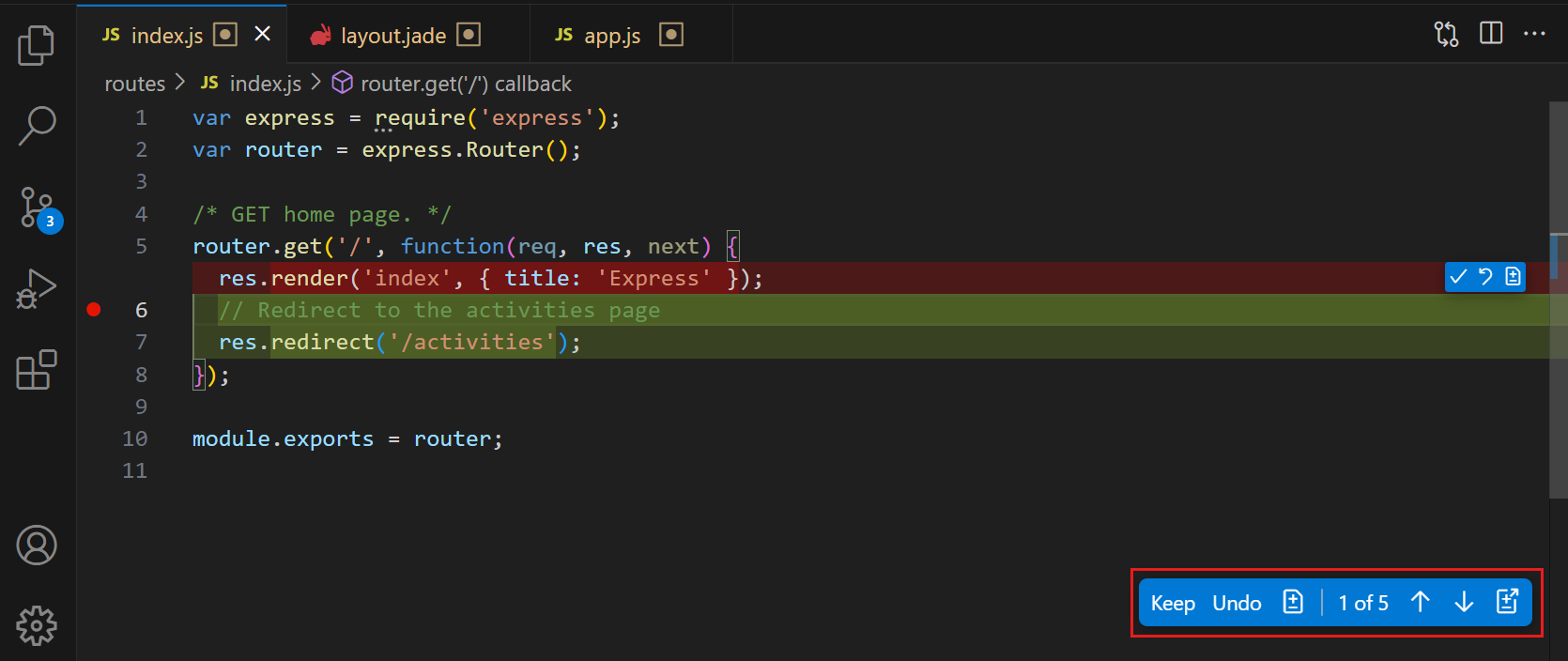
Agent mode is the most powerful option and the one that truly rewards understanding Git first. It can make changes across many files and even run your terminal commands, asking for your approval before each one but that approval step only protects you if you can read and understand what it's about to do:
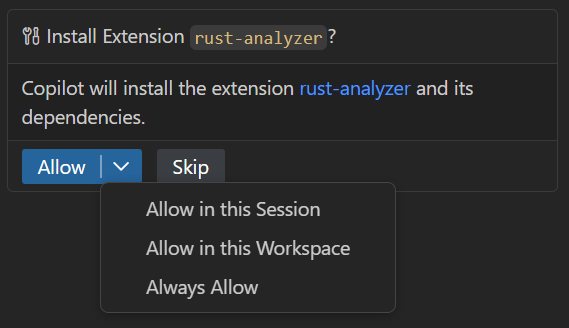
To set it up, install the GitHub Copilot and GitHub Copilot Chat extensions in VS Code and sign in with a GitHub account that has a Copilot plan. Microsoft's Copilot in VS Code docs walk through the install, and GitHub's Copilot plans cover the free and paid tiers.
Where This Goes Next
This post is the foundation. Git is what everything else, pull requests, CI/CD, and AI assistance, sits on top of. Get comfortable with the daily process, branching, and the team scenarios above, and the rest builds naturally.
I'll be going deeper on GitHub Copilot in future posts, custom instructions, agent workflows, MCP servers, and how to work it into a real team's process. Understand the tool first, then let the AI make you faster at using it.
For the canonical references, GitHub's Git documentation and the free Pro Git book are the best places to go deeper on Git itself.