Azure Governance, Cost & Tagging
In this article
This post covers governance, cost management, and tagging in Azure: how to get real visibility into what's being spent, who's responsible for it, and how to enforce standards before things get out of hand. If you haven't already, start with the Azure Platform Fundamentals overview first.
Why Governance Matters
Governance is not just about saving money; it's about:
- Visibility — Knowing who is spending what and where
- Accountability — Charging costs back to the right teams
- Control — Preventing overspending and enforcing standards
- Compliance — Meeting regulatory and organizational policies
Without governance, cloud costs grow unchecked and resources become unmanageable.
Azure Cost Hierarchy
Understanding the hierarchy helps you organize resources for cost visibility.
Billing Account ($100K/month)
  └── Subscription: Prod-Finance ($50K/month)
        ├── Resource Group: rg-finance-app ($30K/month)
        │     ├── VM: finance-vm-01 ($500/month)
        │     └── SQL Database: finance-db ($2,000/month)
        └── Resource Group: rg-finance-analytics ($20K/month)
              └── Storage Account: analytics-data ($1,500/month)
| Level | Description |
|---|---|
| Billing Account | Top-level contract with Microsoft |
| Subscription | Primary billing boundary, each gets its own bill |
| Resource Group | Logical container (free), resources accumulate costs |
| Resource | The actual service that costs money (VM, storage, database) |
| Meters | How usage is measured: compute hours, GB stored, GB transferred, API calls |
Costs start at the resource level and roll up through the hierarchy.
Reference: Understand Cost Management Data
Enterprise Billing Concepts
Billing Models
| Model | Commitment | Best For |
|---|---|---|
| Enterprise Agreement (EA) | Multi-year (usually 3 years), upfront monetary commitment | Large enterprises (10–30% volume discounts) |
| Microsoft Customer Agreement (MCA) | More flexible, no long-term commitment required | Modern replacement for EA |
| Pay-As-You-Go (PAYG) | Credit card, no commitment, list prices | Small companies, dev/test, proof-of-concepts |
Budgets vs Spending Limits
Budgets (soft cap):
- Set monthly budget thresholds (e.g., $10,000/month)
- Receive alerts at 50%, 75%, 100%, 125%
- Does not stop resources — only notifies
- Can trigger automation (e.g., shut down non-prod VMs)
Subscription Spending Limits (hard cap):
- Available on certain subscription types (Visual Studio, MSDN)
- When limit reached, all resources stop
- Not available on production EA subscriptions
Reference: Create Budgets
Reserved Instances and Savings Plans
Pre-commit for significant savings on predictable workloads:
| Option | Discount | Flexibility | Best For |
|---|---|---|---|
| Reserved Instances (RIs) | 30–70% off | Specific resource type and region | Stable workloads (24/7 production VMs) |
| Azure Savings Plans | Similar to RIs | Applies across VM types/regions | Variable compute workloads |
| Spot VMs | Up to 90% off | Can be evicted at any time | Dev/test, interruptible batch jobs |
Example savings for 5 Windows VMs (D4s_v3):
| Configuration | Monthly Cost | Savings |
|---|---|---|
| Pay-as-you-go | $1,460 | Baseline |
| 1-Year RI | $1,022 | 30% |
| 3-Year RI | $730 | 50% |
| + Azure Hybrid Benefit | $511 | 65% |
| + Right-size to D2s_v3 | $255 | 82% |
Small optimizations compound. Combining RI + Hybrid Benefit + right-sizing can save 80%+.
Cost Drivers
Understanding what makes Azure expensive helps you optimize spending.
Compute (Virtual Machines)
- Charged per hour the VM is running
- Factors: VM size, region, OS (Windows ~30% more than Linux), Reserved vs On-Demand
- Optimize: Right-size, auto-shutdown dev/test VMs, Azure Hybrid Benefit, Reserved Instances
Storage (Blobs, Disks, Backups)
- Charged per GB stored + operations
- Factors: Storage type (Premium SSD > Standard HDD), redundancy (GZRS > LRS), access tier, egress
- Optimize: Archive tier for old backups, lifecycle policies, delete unattached disks, LRS for dev/test
Networking (Bandwidth, VPN, Load Balancers)
- Charged for data transfer out of Azure (ingress is free)
- Factors: Egress volume (~$0.08/GB), cross-region traffic, VPN/ExpressRoute SKU
- Optimize: Keep traffic within Azure (Private Endpoints), use CDN, minimize cross-region transfers
Databases
- Charged based on performance tier + storage
- Factors: DTU/vCore tier, serverless vs provisioned, Cosmos DB Request Units
- Optimize: Serverless for dev/test, right-size DTU/vCore, auto-pause when idle
Licensing
- Windows VMs include license cost (~30% of VM price)
- SQL Server licenses can double VM costs
- Optimize: Azure Hybrid Benefit (use existing licenses), Linux VMs when possible
Reference: Cost Design Principles
Cost Management Tools
Cost Analysis
Interactive charts showing spending over time. Filter by subscription, resource group, resource type, location, or tag. Group by service name, resource, or tag value.

Example queries:
- "Show all compute costs in Production subscriptions"
- "Which business unit spent the most last month?" (Group by CostCenter tag)
- "What drove the 30% cost increase?" (Month-over-month comparison)
Cost Alerts
- Budget alerts — Triggered at budget thresholds
- Anomaly alerts — AI detects unusual spending patterns
- Credit alerts — EA customers, low credit balance
Recommendations (Azure Advisor)
Common suggestions:
- Right-size or shut down underutilized VMs
- Delete unattached disks and unused public IPs
- Purchase Reserved Instances for eligible workloads
- Use Standard SSD instead of Premium where performance allows
Potential savings: Often 20–40% of current spend.
Exports
Automate cost data exports to Storage Account or email (daily, weekly, monthly) for import into Excel, Power BI, or financial systems.
Reference: Cost Analysis, Advisor Recommendations
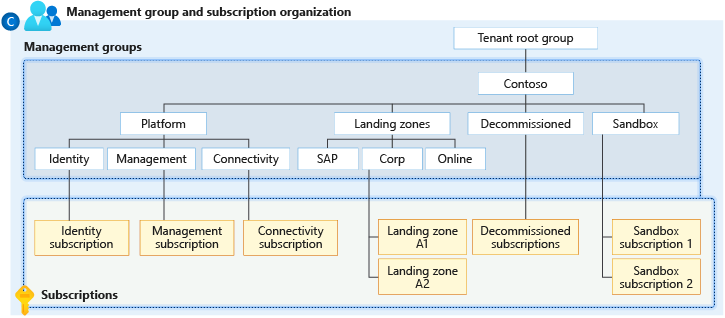
Resource Organization Strategies
How you organize resources directly impacts your ability to track and control costs.
Strategy 1: By Environment
Subscription-Dev ($5K/month)  → All dev resources
Subscription-Test ($10K/month) → All test resources
Subscription-Prod ($80K/month) → All production resources
Pros: Clear cost separation, easy to apply different policies. Cons: Harder to see total application cost across environments.
Strategy 2: By Business Unit
Subscription-Finance ($40K/month)   → All Finance resources
Subscription-Marketing ($35K/month) → All Marketing resources
Subscription-IT ($15K/month)        → Shared services
Pros: Natural chargeback, clear ownership. Cons: Shared services hard to allocate.
Strategy 3: By Application (Hybrid)
Subscription-Prod-Finance
  ├── rg-finance-erp-prod
  ├── rg-finance-reporting-prod
  └── rg-finance-web-prod
Subscription-NonProd-Finance
  ├── rg-finance-erp-dev
  └── rg-finance-erp-test
Pros: Balances environment and business unit needs.
Resource Group Best Practice
Group resources by lifecycle (things deployed, updated, and deleted together):
Good: rg-marketing-website-prod contains App Service, SQL Database, Storage Account, Application Insights (all deployed together).
Bad: rg-all-databases containing databases from different teams with different lifecycles.
Naming convention: rg-[business-unit]-[application]-[environment]-[region]
Reference: Resource Organization
Tagging Schemes
Tags are key-value pairs attached to resources for organization, cost tracking, and automation.
Limits: Max 50 tags per resource, 512-char names, 256-char values. Tags on a resource group do not inherit to resources (must apply separately or use Azure Policy).
Required Tags
| Tag | Purpose | Example Value | Used For |
|---|---|---|---|
| CostCenter | Which budget pays? | 12345 | Chargeback reports |
| Owner | Who manages this? | finance-team@company.com | Incident escalation |
| Environment | Lifecycle stage | Prod, Dev, Test | Policy enforcement |
| Application | Which workload? | ERP-System | Cost rollup by application |
| BusinessUnit | Which department? | Finance | Cross-department allocation |
Optional Tags
| Tag | Purpose | Example Value |
|---|---|---|
| DataClassification | Sensitivity level | Confidential, Public |
| Criticality | Business impact | High, Mission-Critical |
| Expiration | When can this be deleted? | 2026-03-01 |
Tag Enforcement Strategies
1. Require tags at creation (deny effect): Deny resource creation unless required tags are present. Ensures compliance from day one, but can slow deployments.
2. Auto-tag with defaults (modify effect): Automatically add missing tags with default values (e.g., CostCenter = "Unknown"). Doesn't block deployments but needs cleanup.
3. Inherit tags from Resource Group (Azure Policy): Copy RG tags to all resources inside. Simplifies tagging but doesn't work well for shared RGs.
Tag-Based Cost Reporting
- Require
BusinessUnittag on all resources - In Cost Management → Group by tag (BusinessUnit)
- Export to CSV for finance team
| BusinessUnit | Cost |
|---|---|
| Finance | $35,000 |
| Marketing | $28,000 |
| HR | $15,000 |
| IT (Shared) | $12,000 |
This enables chargeback/showback models.
Reference: Tag Resources, Tag Inheritance
Key Takeaways
- Costs roll up: Resource → Resource Group → Subscription → Billing Account
- Use budgets with alerts — they don't stop resources, but they provide visibility
- Reserved Instances + Hybrid Benefit + right-sizing compound to 80%+ savings
- Organize resources by lifecycle, not by resource type
- Implement required tags (CostCenter, Owner, Environment) and enforce with Azure Policy
- Use Cost Management to analyze spending and act on Advisor recommendations
Additional Resources
- Cost Management Overview
- Create Budgets
- Reserved Instances
- Resource Naming and Tagging
- Azure Advisor
- Tag Resources
This is part of the Azure Fundamentals Series. Return to the main guide to explore other topics.