Azure Identity & Access Management
In this article
This post covers identity and access control in Azure: how authentication and authorization actually work, what managed identities are and why they matter, RBAC scopes, and how to handle the full identity lifecycle. If you haven't already, start with the Azure Platform Fundamentals overview first.
Authentication vs Authorization
These two concepts are often confused but are fundamentally different.
Authentication: "Who are you?"
- Proving your identity using credentials (username/password, certificates, biometrics)
- Happens first before any access decisions
- Example: You sign in with username/password → Entra ID verifies your identity
Authorization: "What can you do?"
- Determining permissions after identity is proven
- Uses policies, roles, and permissions
- Example: You try to create a VM → RBAC checks if you have the
Virtual Machine Contributorrole
Real-world analogy:
- You scan your badge at the office entrance → Authentication (system verifies your badge)
- System checks which floors your badge can access → Authorization (determines what you can do)
Reference: Authentication vs Authorization
Administrative vs Application Identities
Azure has two primary types of identities with different purposes.
Administrative Identities (Human Users)
- Real people: admin@company.com, developer@company.com
- Interactive login (browser, CLI, PowerShell)
- Subject to Multi-Factor Authentication (MFA)
Common roles: Subscription Owner, Contributor, Reader, or custom roles.
Application Identities (Non-Human)
- Service Principals — App registrations with credentials
- Managed Identities — Azure-managed identities with NO passwords
- Used by applications, scripts, and automation
Old way (bad practice): Store username/password in application code, hard-coded connection strings, credentials in config files.
Modern way (best practice): Use Managed Identities. No credentials in code; Azure handles authentication automatically.
Comparison
| Aspect | Administrative Identity | Application Identity |
|---|---|---|
| Purpose | Human access | Application/service access |
| Interactive Login | Yes (portal, CLI) | No (automated) |
| Password | Yes (or passwordless) | Managed Identity: No |
| MFA Required | Yes (best practice) | Not applicable |
| Lifespan | Matches employment | Matches app lifecycle |
Managed Identities
A Managed Identity is an identity in Microsoft Entra ID that is automatically managed by Azure. No passwords, no certificates, no credential rotation.
The Problem They Solve
Traditional approach:
- Developer creates a Service Principal with a secret
- Secret is stored in Key Vault or app config
- Secret expires → application breaks
- Developer rotates secret → updates config → redeploys
Managed Identity approach:
- Enable Managed Identity on an Azure resource
- Azure automatically creates the identity in Entra ID
- Assign an RBAC role to that identity
- Application requests a token from Azure automatically
- No secrets, no passwords, no rotation needed
Reference: Managed Identities Overview
System-Assigned Managed Identity
- Tied to a single Azure resource
- Created when you enable it, deleted when the resource is deleted
- Cannot be shared across resources
- Use when: One identity per resource, simple scenarios, lifecycle matches resource
User-Assigned Managed Identity
- Standalone resource (created independently)
- Can be assigned to multiple Azure resources
- Lifecycle independent of the resources using it
- Use when: Multiple resources need the same permissions, identity must persist when resource is recreated
Using Managed Identities in Code
// Old way (BAD — requires storing connection string)
var client = new BlobServiceClient("DefaultEndpointsProtocol=https;AccountName=...");

// New way (GOOD — uses Managed Identity, no credentials)
var client = new BlobServiceClient(
    new Uri("https://mystorageaccount.blob.core.windows.net"),
    new DefaultAzureCredential()
);
# Azure CLI — authenticate using Managed Identity
az login --identity

# Access storage without credentials
az storage blob list --account-name mystorageaccount --container mycontainer
Role-Based Access Control (RBAC)
RBAC is Azure's authorization system. It determines who can do what on which resources.
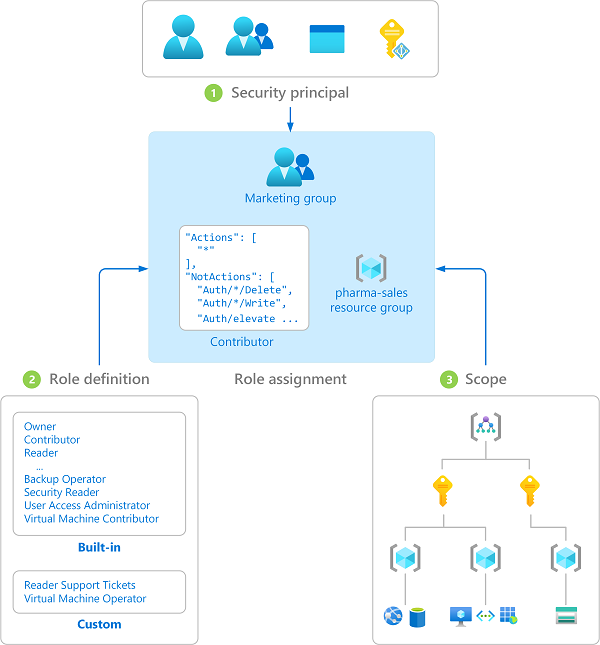
RBAC formula:
Security Principal + Role Definition + Scope = Role Assignment
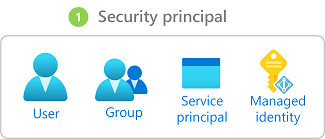
Security Principal (Who?)
- User — admin@company.com
- Group — Finance-Team-Group
- Service Principal — App registration
- Managed Identity — MI assigned to a VM
Role Definition (What can they do?)
Common built-in roles:
| Role | Access Level |
|---|---|
| Owner | Full control, can assign roles |
| Contributor | Create/manage resources, cannot assign roles |
| Reader | View-only |
| Virtual Machine Contributor | Manage VMs only |
| Storage Blob Data Reader | Read blob data only |
Reference: Built-in Roles
Scope (Where?)
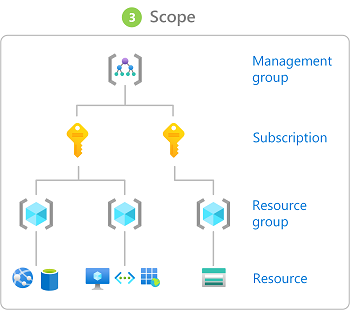
Azure has 4 scope levels, and permissions flow down the hierarchy (never up):
Management Group
  └── Subscription
        └── Resource Group
              └── Resource (VM, Storage, Database)
Scope inheritance: If you grant Reader at the subscription level, the user can read all resource groups and resources in that subscription.
Most permissive wins: If a user has Reader at subscription level and Contributor at a specific RG, they are Contributor in that RG and Reader everywhere else.
Reference: RBAC Scope
Example Assignment
Scenario: Finance team needs to manage VMs in the Finance resource group.
- Principal: finance-team@company.com
- Role: Virtual Machine Contributor
- Scope: Resource Group
rg-finance-prod
Result: Finance team can start/stop/resize VMs. They cannot delete the resource group, create storage accounts, or assign roles.
Least Privilege
Grant the minimum permissions needed to perform a job. Nothing more.
Why it matters:
- Limits damage from compromised accounts
- Reduces accidental deletions/changes
- Meets compliance requirements
Least Privilege in Practice
- Identify the specific task — e.g., deploy web applications to App Service
- Find the narrowest role — App Service Contributor instead of Contributor
- Apply to narrowest scope — Resource Group level instead of Subscription
- Review periodically — Remove access when no longer needed
Bad vs Good
| Bad Example | Good Example | |
|---|---|---|
| Task | Read logs from a storage account | Same task |
| Role | Owner at Subscription level | Storage Blob Data Reader |
| Scope | Entire subscription | Single storage account |
Just-In-Time (JIT) Access
For highly privileged roles, don't grant them permanently. Use Microsoft Entra Privileged Identity Management (PIM):
- Developer requests elevation in PIM
- Manager approves (or auto-approved based on policy)
- Developer has Owner role for a limited time (e.g., 4 hours)
- Role automatically revokes after time expires
Reference: PIM
Identity Lifecycle Management
Identities must be managed throughout their lifecycle to maintain security.
Joiner (New Employee)
- HR system creates user account
- Assign to appropriate groups
- Provision Azure RBAC based on job role
- Assign licenses and enroll in MFA
Mover (Role Change)
- Remove old permissions
- Add new permissions
- Update group memberships
- Audit: Ensure no orphaned permissions remain
Leaver (Termination)
- Disable account immediately
- Remove all RBAC role assignments at all scopes
- Revoke MFA registrations
- Remove from all groups
- Audit owned resources (transfer ownership if needed)
- Delete account after retention period
Automation Best Practices
- Integrate Microsoft Entra ID with your HR system for automated provisioning
- Use Conditional Access for policy enforcement
- Implement Access Reviews (quarterly review of permissions)
- Set up alerts for high-privilege role assignments
Reference: Identity Governance
Orphaned Access (Common Problem)
A user leaves but retains Subscription Owner role, service principal secrets, or personal resource deployments.
Solution: Regular access reviews, automated de-provisioning, and a policy that all production resources must exist in org-managed resource groups.
Key Takeaways
- Authentication proves identity; authorization determines permissions
- Use Managed Identities to eliminate passwords in applications
- RBAC controls who can do what — apply at the narrowest scope
- Follow least privilege — never grant more access than needed
- Use PIM for just-in-time access to privileged roles
- Manage the full identity lifecycle — especially offboarding
Additional Resources
- Managed Identities Overview
- RBAC Overview
- Identity Best Practices
- Microsoft Entra ID Governance
- Access Reviews
This is part of the Azure Fundamentals Series. Return to the main guide to explore other topics.