Building an Azure CSA Agent with MCP Servers and GitHub Copilot
In this article
Building an Azure CSA Agent with MCP Servers and GitHub Copilot



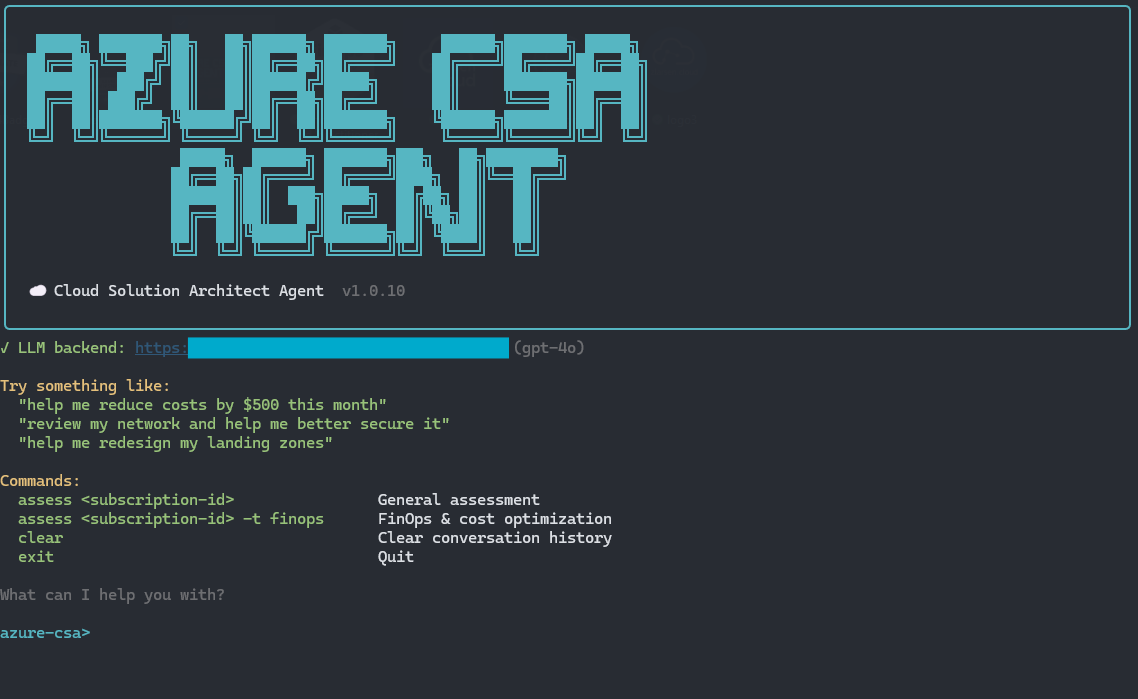
Azure infrastructure assessments follow a predictable pattern: run Azure Resource Graph queries across subscriptions, pull the results together, cross-reference against Well-Architected best practices, and write up findings with recommendations. Whether it's a FinOps review, a landing zone alignment check, a network audit, or a WAF engagement, the mechanical parts are the same every time.
The Azure CSA Agent automates that pattern. It runs inside VS Code as a GitHub Copilot chat mode and also works as a standalone CLI, grounded in live Azure data and official Microsoft documentation, without deploying anything into the target environment. It uses MCP (Model Context Protocol) servers to connect AI models to real Azure data sources.
This post walks through what the agent does, how MCP servers make it work, and how to set up something similar for your own Azure workflows.
What the Agent Actually Does
At its core, the agent is a Cloud Solution Architect persona that can query live Azure environments and cross-reference findings against Microsoft documentation. It operates in advisory mode only. It reads data through Azure Resource Graph but never modifies, creates, or deletes resources.
There are three ways to use it:
| Path | LLM | What You Need | Cost |
|---|---|---|---|
| VS Code chat mode | GitHub Copilot | Copilot license + Azure MCP Server extension | Included with Copilot |
| CLI with pre-built assessments | None | Python 3.11+ and az login |
Free |
| CLI with natural language queries | Azure OpenAI (your deployment) | Python 3.11+ and an Azure OpenAI resource | About $0.01 per query |
The VS Code path is the most capable. You open Copilot chat, select the Azure CSA mode, and start asking questions about your environment. The agent decides which ARG queries to run, pulls relevant documentation, and synthesizes findings into structured recommendations.
The CLI paths are useful when you want to run a quick assessment from a terminal or when VS Code is not available. The pre-built assessments are completely free since they use hardcoded KQL queries with no LLM involved. The natural language path adds the ability to ask freeform questions and get generated KQL with a CSA analysis pass, powered by your own Azure OpenAI deployment.
How MCP Servers Tie It Together
The piece that makes this work is the Model Context Protocol. MCP is an open standard that lets AI models call external tools in a structured way. Instead of the model guessing at answers or relying solely on training data, it can reach out to real data sources, execute queries, and work with actual results.
The Azure CSA Agent uses two MCP servers:
Azure Resource Manager MCP Server
This is the Azure MCP Server extension for VS Code. It exposes three tools to the AI model:
| Tool | What It Does |
|---|---|
generate_query |
Takes a natural language description and generates an Azure Resource Graph (KQL) query |
validate_query |
Validates the syntax and structure of an ARG query before execution |
execute_query |
Runs the query against the authenticated Azure environment and returns results |
The generate, validate, execute pattern matters. The model first proposes a KQL query, then validates it for correctness, then executes it. If the query fails (bad property path, invalid syntax, wrong resource type), the model can see the error and try again. This is significantly more reliable than generating a query and hoping it works.
One thing I learned building this is that ARG queries have specific property nesting rules that LLMs frequently get wrong. For example, the provisioning state of a resource lives at properties.provisioningState, not provisioningState. Network security group rules are nested under properties.securityRules, not securityRules. The agent's system prompt includes explicit rules about these property paths, and the validate-before-execute pattern catches the remaining edge cases.
Microsoft Learn MCP Server
This server provides three tools for searching and fetching official Microsoft documentation:
| Tool | What It Does |
|---|---|
docs_search |
Searches Microsoft Learn and returns concise content chunks with titles and URLs |
docs_fetch |
Fetches the full content of a specific documentation page as markdown |
code_sample_search |
Searches for code examples in official Microsoft documentation |
This is what grounds the agent's recommendations in reality. When the agent finds that a customer has public IPs without DDoS protection, or VMs missing Azure Hybrid Benefit, it does not just flag the issue. It pulls the relevant Microsoft documentation and cites it in the recommendation. This is important for credibility, especially when presenting findings to customers who want to verify the guidance.
The Assessment Workflow
When you trigger an assessment (either through VS Code or the CLI), the agent follows a four-step process:
- Load the skill for the assessment type (FinOps, landing zone, network, WAF, etc.)
- Search Microsoft Learn for current documentation relevant to the assessment domain
- Run ARG queries against the live Azure environment to collect resource state data
- Synthesize findings by combining query results with documentation into structured recommendations
The skills are markdown files that define what each assessment should cover, what ARG queries to run, and how to structure the output. For example, the FinOps assessment skill tells the agent to check for orphaned disks, untagged resources, VMs not using Azure Hybrid Benefit, underutilized commitments, and Advisor cost recommendations. The landing zone skill checks management group hierarchy, subscription organization, policy coverage, and identity configuration.
In VS Code, the agent has access to 18 skills total. Four ship with the repo (FinOps, landing zone, network, and WAF assessments). The other 14 are Azure platform skills that come from the VS Code environment and cover areas like compliance, RBAC, Kubernetes, diagnostics, cost analysis, reliability, cloud migration, and more.
Building a Similar Agent
If you want to build your own MCP-powered agent for Azure work (or any domain, really), here is the general approach.
Step 1: Define the Agent Persona
Create a .prompt.md file in your repo under .github/prompts/. This is a VS Code convention for GitHub Copilot chat modes. The file uses YAML frontmatter to declare the mode, available tools, and skills:
---
mode: agent
description: "Your agent description here"
tools:
  - mcp_azure_resourc_generate_query
  - mcp_azure_resourc_validate_query
  - mcp_azure_resourc_execute_query
  - mcp_microsoft-lea_microsoft_docs_search
  - mcp_microsoft-lea_microsoft_docs_fetch
skills:
  - your-custom-skill
---
Below the frontmatter, write the system prompt. This is where you define who the agent is, how it should behave, what tools it should use and when, and what output formats to follow. Be specific. The more detail you give about tool usage patterns (like "always validate a query before executing it"), the more reliable the behavior.
Step 2: Create Skills
Skills are markdown files in .github/skills/<skill-name>/SKILL.md. Each skill has a YAML frontmatter block with a description and optionally an applyTo glob pattern. The content of the skill tells the agent what to do when that domain comes up.
For an Azure assessment skill, this typically includes:
- What areas to assess
- What ARG queries to run
- How to interpret the results
- What documentation to reference
- How to structure the output (findings, risks, recommendations)
Step 3: Install the MCP Server Extensions
For Azure work, you need:
- Azure MCP Server for ARG queries
- The Microsoft Learn MCP server for documentation access (available through the VS Code MCP marketplace)
These install as VS Code extensions and register their tools automatically. Your agent's .prompt.md references them by their tool names.
Step 4: Add a CLI (Optional)
If you want the agent to work outside VS Code, you can build a Python CLI that replicates the query and analysis workflow. The Azure CSA Agent uses Typer for the CLI framework and the azure-identity and azure-mgmt-resourcegraph packages for ARG queries. For the natural language path, it uses the openai Python package pointed at an Azure OpenAI deployment.
The CLI authenticates with DefaultAzureCredential, which picks up your az login session. No API keys or service principals needed for basic use.
Security in Customer Tenants
One question that comes up is how safe this is to use in a customer's Azure tenant. The answer depends on which path you're using.
For the VS Code chat mode, the data flow is: your Azure credentials query ARG (read-only), the results go to GitHub Copilot's LLM (enterprise terms, no training on your data), and the output shows on your screen. Resource names, IPs, and tags are sent to Copilot for analysis, but this falls under the same data handling as any Copilot chat session in an enterprise setting.
For the CLI with Azure OpenAI, the query results go to your own Azure OpenAI deployment in your own subscription. Microsoft's data processing terms apply. Nothing goes to OpenAI Inc.
In both cases, the agent never writes to the customer's environment. All operations go through Azure Resource Graph, which is a read-only query interface. Assessment reports save locally to an outputs/ directory that is excluded from version control via .gitignore.
Deploying the Azure CSA Agent
VS Code (Recommended)
git clone https://github.com/z-larsen/AzureCSAAgent.git
Open the folder in VS Code. Install the Azure MCP Server extension. The Azure CSA chat mode appears in the Copilot mode picker automatically.
Make sure you're authenticated with az login and have Reader access on the subscriptions you want to assess.
CLI
git clone https://github.com/z-larsen/AzureCSAAgent.git
cd AzureCSAAgent
pip install -e .
azure-csa
This gives you the interactive REPL with pre-built assessments. Run azure-csa assess <subscription-id> -t finops for a FinOps assessment, or type natural language questions if you have Azure OpenAI configured.
For the natural language path, you'll need an Azure OpenAI resource with a GPT-4o deployment. The README has the full setup commands for creating the resource, deploying the model, and assigning RBAC. It uses DefaultAzureCredential so you don't need to manage API keys.
Once your Azure OpenAI resource is deployed, set the environment variables so the CLI knows where to send requests:
# Windows (PowerShell) — set for this session
$env:AZURE_OPENAI_ENDPOINT = "https://<your-openai-name>.openai.azure.com"
$env:AZURE_OPENAI_DEPLOYMENT = "gpt-4o"
Those only last for the current terminal. To persist them so every new terminal picks them up automatically:
# Windows — persist to user environment (one-time)
[Environment]::SetEnvironmentVariable("AZURE_OPENAI_ENDPOINT", "https://<your-openai-name>.openai.azure.com", "User")
[Environment]::SetEnvironmentVariable("AZURE_OPENAI_DEPLOYMENT", "gpt-4o", "User")
# Linux/macOS — add to your shell profile (one-time)
echo 'export AZURE_OPENAI_ENDPOINT=https://<your-openai-name>.openai.azure.com' >> ~/.bashrc
echo 'export AZURE_OPENAI_DEPLOYMENT=gpt-4o' >> ~/.bashrc
source ~/.bashrc
After persisting, open a new terminal and run azure-csa. The LLM backend line at startup will confirm the connection.
What MCP Changes About Agent Development
The broader point here is not really about this specific agent. It's about what MCP servers enable for any domain-specific AI tooling.
Before MCP, building an AI tool that could interact with Azure meant writing custom API integrations, managing authentication flows, handling pagination, parsing response schemas, and connecting all of that into whatever LLM framework you were using. It was a significant amount of plumbing for every new data source.
MCP changes that by standardizing the interface. An MCP server exposes a set of tools with defined inputs and outputs. Any MCP-compatible client (VS Code, Claude Desktop, custom applications) can discover and use those tools without writing integration code. The Azure MCP Server handles all of the ARG API complexity, authentication, query parsing, pagination, and error handling. The Microsoft Learn MCP server handles documentation search, ranking, and content extraction. The agent just calls tools and works with results.
This means building a new agent is mostly about defining the persona and the skills, not about writing API clients. If you wanted to build a similar agent for a different domain, like a database performance tuning agent or a Kubernetes cluster assessment tool, you would follow the same pattern: find or build MCP servers for your data sources, define skills for your assessment areas, and write the system prompt that ties it together.
The MCP specification is open and the ecosystem is growing. Microsoft, Anthropic, and others are publishing MCP servers for their platforms, and the list of available servers keeps expanding.
Source Code
The full source is available at github.com/z-larsen/AzureCSAAgent. It includes the VS Code chat mode definitions, CLI source, pre-built assessment skills, and setup instructions for all three usage paths.
Related reading
Part of an ongoing thread on AI for Azure practitioners: