Model Context Protocol (MCP): What It Is and Why Azure Users Should Care
In this article
Model Context Protocol (MCP): What It Is and Why Azure Users Should Care
For the first couple of years, using an AI assistant meant copying context in and copying answers out. You pasted a log, it suggested a fix, you pasted the fix somewhere else. The model could reason, but it could not reach anything. Model Context Protocol changes that. It is the standard that lets an AI assistant call your tools, read your data, and take actions, in a structured and permissioned way.
If you work in Azure, this is the mechanism behind the GitHub Copilot for Azure experience, and it is something you can extend yourself.
What MCP Is
MCP is an open protocol that standardizes how language models connect to external tools, data, and context. Think of it as a common plug. Before MCP, every AI tool integration was bespoke: a custom connector for GitHub, another for your database, another for your ticketing system, each with its own auth and its own shape. MCP defines one contract so any compliant client can talk to any compliant server.
It uses a client-server architecture with three roles:
- Hosts are the apps you interact with. VS Code is a host. So is the GitHub Copilot app, Visual Studio, and Claude.
- Clients live inside the host and manage the connection to a server. GitHub Copilot agent mode in VS Code acts as an MCP client.
- Servers are programs that expose capabilities: tools to perform actions, resources to read data, and prompts to guide interactions.
So when you use Copilot agent mode in VS Code to query your Azure environment, VS Code is the host, Copilot agent mode is the client, and the Azure MCP Server is the server providing the tools.
Reference: What is the Azure MCP Server and the Model Context Protocol spec.
How MCP Works
Tools, resources, and prompts
A server can expose three kinds of capability:
- Tools let the model do something: run a query, create a resource, call an API. This is the one you will use most.
- Resources provide read-only context you attach to a request, like a file, a database table, or an API response.
- Prompts are reusable prompt templates the server ships to standardize common tasks.
The model does not blindly run tools. In agent mode, the assistant decides which tool fits the request, the host asks you to confirm the call (unless you have allowed it), the server runs it, and the result flows back into the conversation. The model can then chain into another tool based on the outcome.
Local and remote servers
Servers connect over one of two transport styles:
- Local (stdio): the server runs as a process on your machine and communicates over standard input/output. Good for things that touch your local filesystem or local tools.
- Remote (HTTP/SSE): the server runs somewhere else and you connect over HTTP. Good for shared, hosted capabilities that a whole team uses.
Adding a server in VS Code
VS Code configures MCP servers through an mcp.json file. There are two places it can live:
- Workspace:
.vscode/mcp.jsonin your project. Check it into source control to share server configs with your team. - User profile: run MCP: Open User Configuration to create one that applies across all your workspaces.
You can also run MCP: Add Server from the Command Palette for a guided flow, or install servers from the built-in MCP gallery in the Extensions view by searching @mcp. A minimal mcp.json with one remote and one local server looks like this:
{
  "servers": {
    "github": {
      "type": "http",
      "url": "https://api.githubcopilot.com/mcp"
    },
    "playwright": {
      "command": "npx",
      "args": ["-y", "@playwright/mcp@latest"]
    }
  }
}
Do not hardcode secrets in mcp.json. Use input variables or environment files so API keys stay out of source control.
Reference: Add and manage MCP servers in VS Code.
Trust and security
MCP servers, especially local ones, can run arbitrary code on your machine. VS Code prompts you to confirm trust the first time you start a server, and you should only add servers from sources you trust. On macOS and Linux you can also sandbox a local stdio server by setting "sandboxEnabled": true, which restricts its filesystem and network access to only what you permit. Treat an MCP server with the same caution you would treat any dependency you install.
Why MCP Matters for Azure Users
The Azure MCP Server
The clearest reason to care is the Azure MCP Server. It lets an AI agent interact with your Azure resources through natural language. Instead of remembering the exact az syntax, you ask "which storage accounts in this subscription still allow public blob access," and the agent uses the server's tools to run the underlying Azure Resource Graph query and answer.
A few properties make it useful:
- Entra ID auth. It authenticates with your existing Azure identity through the Azure Identity library, so it respects the permissions you already have. It cannot see what you cannot see.
- Real tools, not guesses. It runs actual Azure operations and Resource Graph queries, so answers are grounded in your live environment rather than the model's training data.
- Broad service coverage. Dozens of Azure services are already connected, with more added regularly.
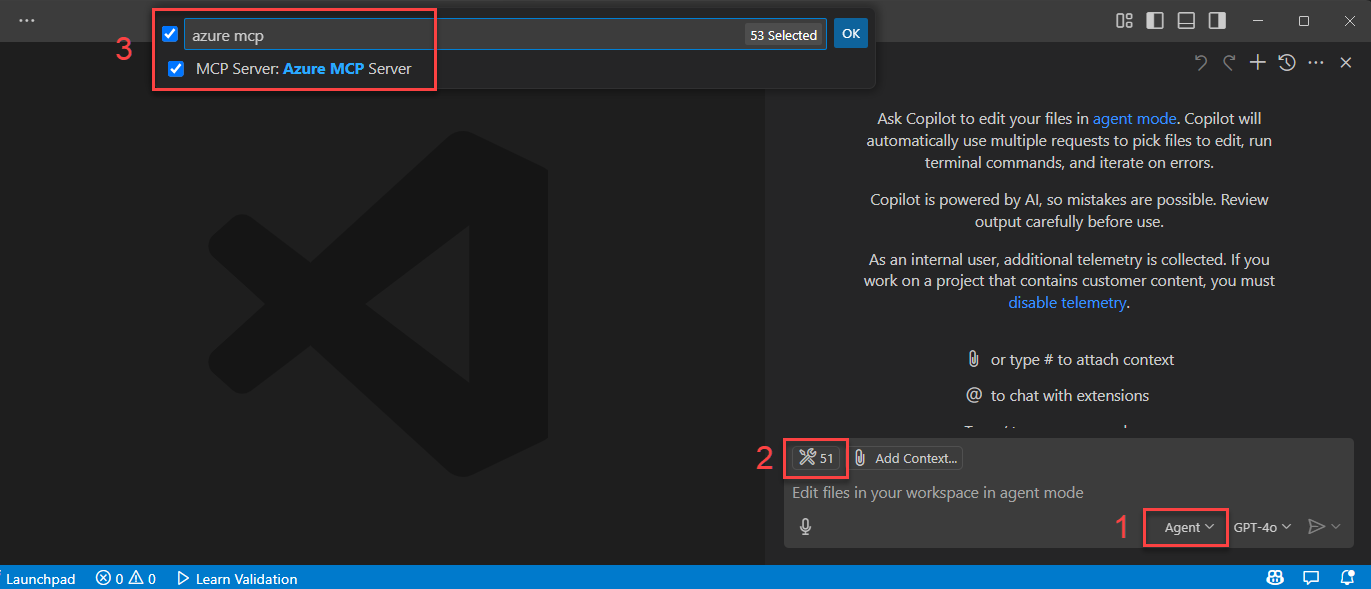
This is also what powers GitHub Copilot for Azure: it supplements the model's general knowledge with tool calling through the Azure MCP Server, so it can deploy resources, look up configuration, and troubleshoot against your actual subscription.
The bigger point
The Azure MCP Server is one example of the real value: MCP lets you connect an AI assistant to your systems, not just Microsoft's. Your internal REST API, your on-call runbooks, your CMDB, your ticketing system, your data warehouse. Anything you can wrap in a server becomes something the assistant can use, with your auth and your guardrails.
Building Your Own Custom MCP Server
You do not have to wait for a vendor to ship a server for the thing you care about. Building one is straightforward, and there are a few paths depending on how much you want to write.
Option 1: Use the official SDKs
The Model Context Protocol project publishes SDKs in several languages (TypeScript, Python, C#, and more). The pattern is the same everywhere:
- Create a server.
- Define one or more tools: a name, a description, an input schema, and a function that runs when the tool is called.
- Run the server over stdio (local) or HTTP (remote).
- Point your host at it through
mcp.json.
The description and input schema matter more than they look. They are what the model reads to decide when and how to call your tool, so write them like you are explaining the tool to a new teammate.
Option 2: Expose an existing agent or workflow
If you already have logic built, you may not need to write a server from scratch:
- Azure Logic Apps can expose Standard workflows as remote MCP servers, which is a low-code way to turn existing integrations into agent tools. See Create remote MCP servers from Standard workflows.
- The Microsoft Agent Framework lets you expose an agent as an MCP server, so any MCP-compatible client can call it as a tool. See Using MCP tools with agents.
What custom servers are good for
Common use cases:
- Wrapping an internal API. Turn "look up the order status for customer X" into a tool so support engineers can ask in plain language.
- Runbook automation. Expose safe, parameterized operations from your on-call runbooks so an agent can gather diagnostics or perform a known remediation with a human confirming the call.
- Data access. Give the assistant read access to a database, a data lake, or an internal search index, scoped to exactly the tables or indexes you allow.
- Domain knowledge. Serve your own docs, architecture decisions, or standards as resources so the assistant answers in line with how your org actually does things.
- Composed workflows. Chain several internal systems (ticketing, deployment, notifications) behind one tool so a single request drives a multi-step process.
The design principle across all of these: expose the smallest, most specific set of tools that does the job, describe them clearly, and require a human to approve anything that writes or deletes. A tightly scoped server is safer, easier to reason about, and cheaper to run, because every tool definition you expose is also context the model has to read on every turn.
Where to Start
If you want to try this today:
- Install the Azure MCP Server in VS Code and use it from Copilot agent mode against a non-production subscription.
- Add one more server from the
@mcpgallery (the GitHub or Playwright servers are good first picks) to see how multiple servers coexist. - When you hit something MCP does not cover yet, build a small custom server around one internal tool and add it to
.vscode/mcp.json.
MCP is still young, and the ecosystem is moving quickly, but the core idea is stable and worth learning now: a common protocol that lets AI assistants safely use the tools and data you already have.
Related reading
Part of an ongoing thread on AI for Azure practitioners: